 Xiandou Home

1Open Auto Pattern from Create
In Xiandou Home, open Create and choose Auto Pattern. Start with clear pixel art or an existing chart with a readable grid and color codes.

2Choose a clear bead chart
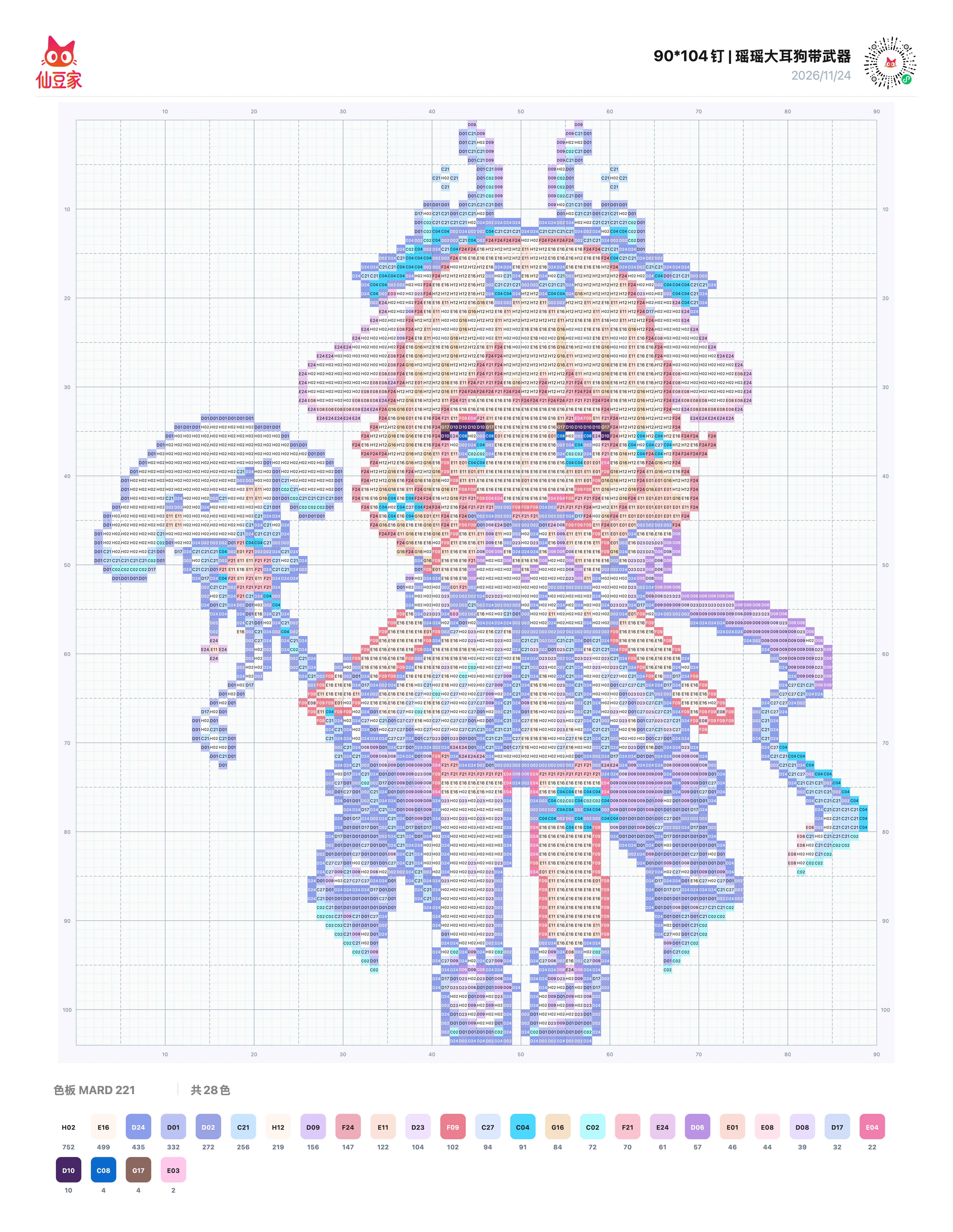
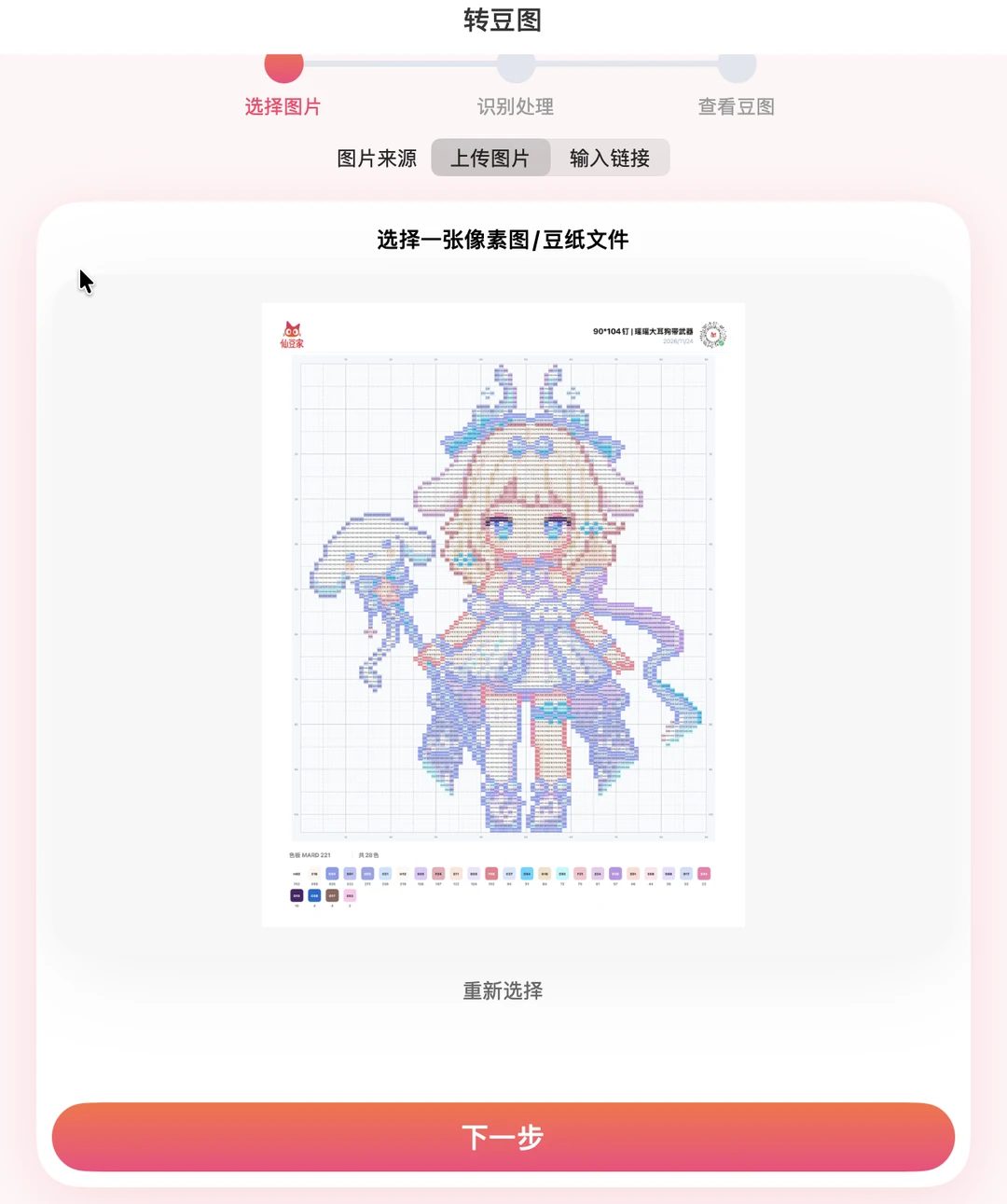
Choose Upload Image and select your chart. If you have a chart link, use the link entry tab. The original chart in this example is marked 90 × 104 pegs and 28 colors. Check the preview, then select Next.
3Use Quick conversion for results in seconds
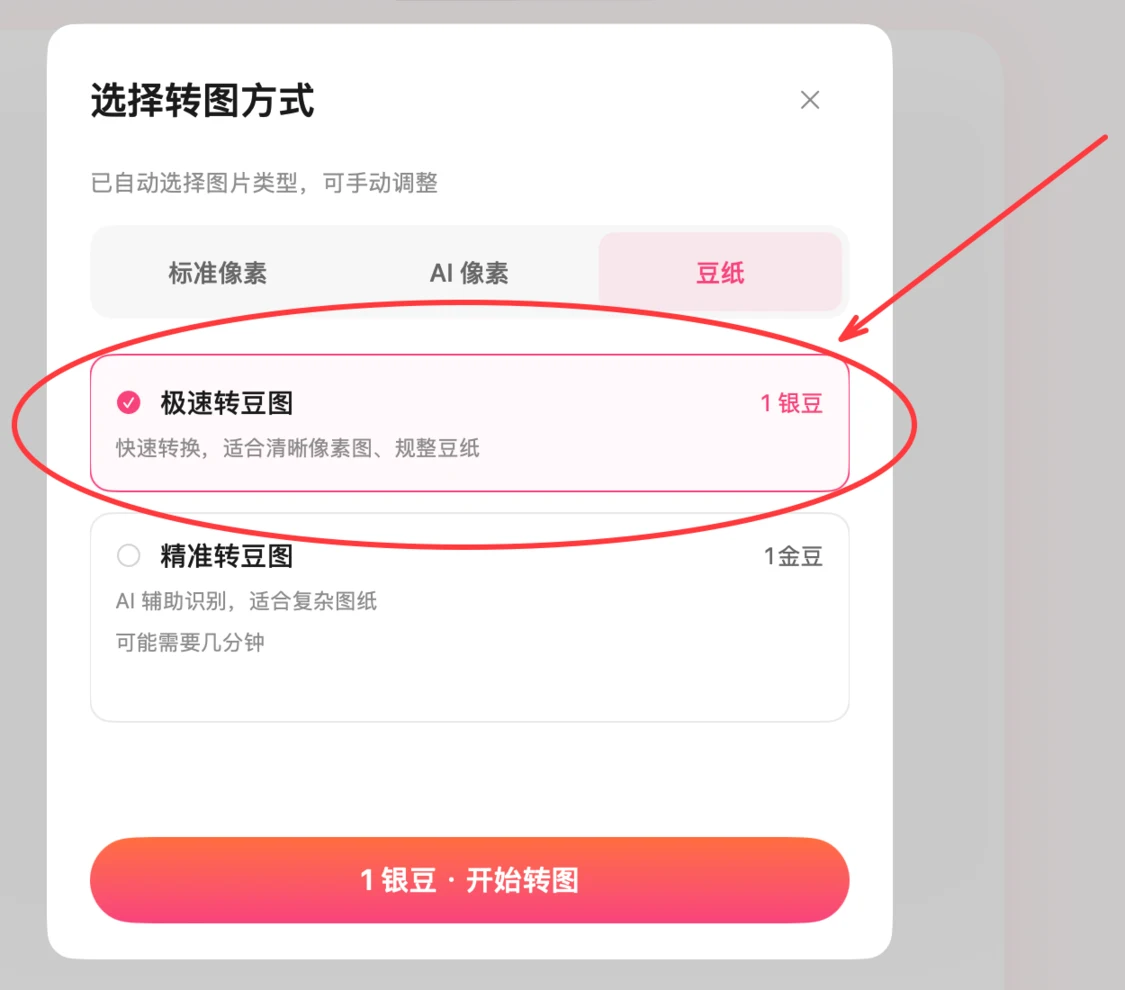
Select Bead Chart as the image type and choose Quick conversion. Check the silver bean cost shown on screen, then start the conversion. The algorithm can return a result in seconds for a clear, regular chart.
4Review the result, then edit or export
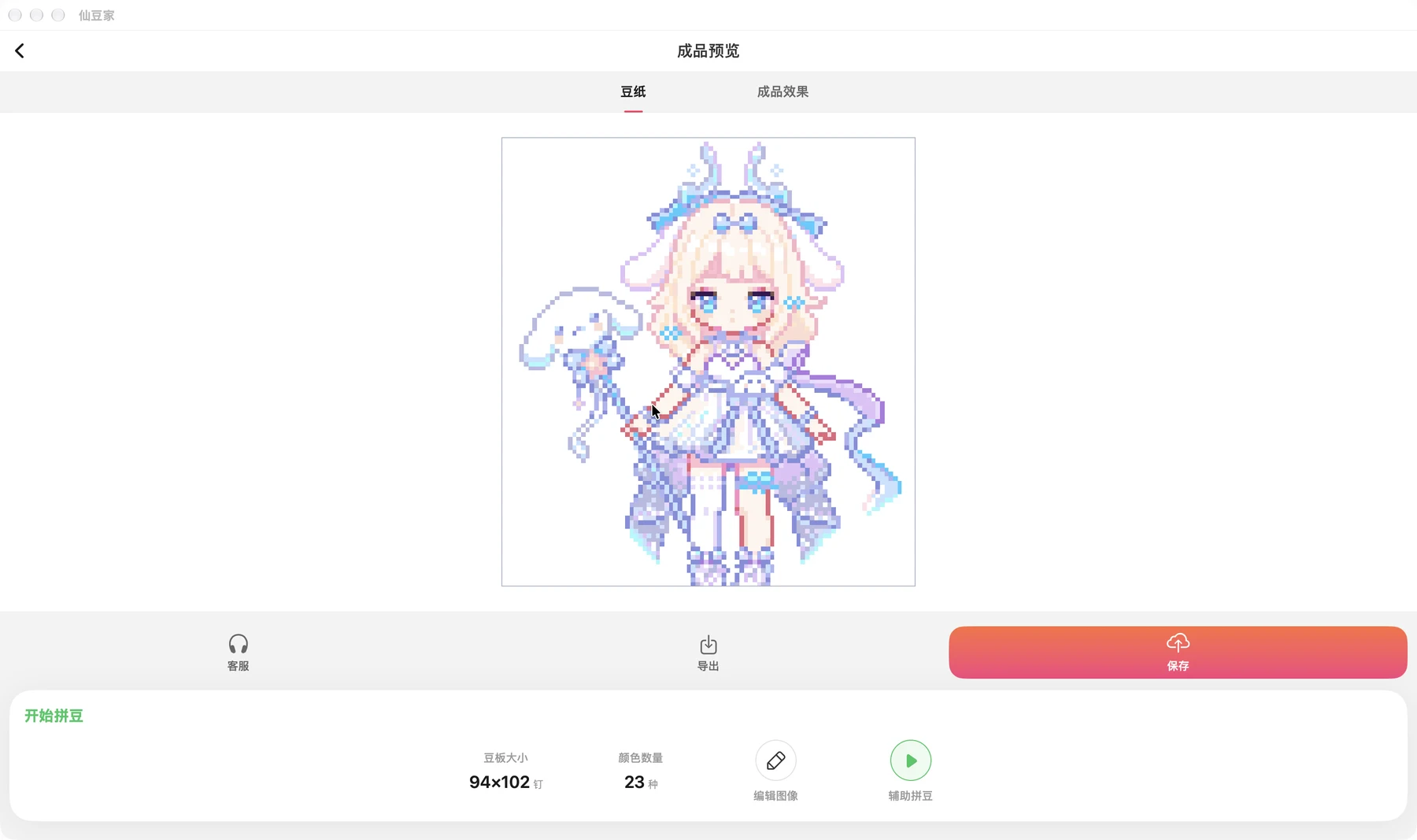
Quick conversion returned 94 × 102 pegs and 23 colors in this example. Compare the size, colors and details with the original, then edit, save or export the result. For complex charts or when you need a closer match to the original grid and color codes, try precise conversion or Xiandou Assistant and review the result.